[Geographic Data (from web)]
Description: Imports geographic data from web services
When you select [Geographic Data], a list of importable geographic data is shown as submenus. Currently only Elevation data can be imported from web.
Please follow the steps below, to import geographic data from web.
Select the geographic data.
If you’ve not specified the coordinate system for the project, the [Select Coordinate System] dialog (Figure 47) is shown. Please select coordinate system and click on [OK] button.
[Select Region] dialog (Figure 72) is shown. Use the following operations to select the region, and click on [Next]:
Ctrl + Left-dragging to Pan the map.
Ctrl + Middle-dragging to Zoom in/out the map. You also can use [Zoom In] and [Zoom Out] buttons.
Left-dragging to select region. The selected region is shown as a box with black line.
Click on [Next] button, and the [Zoom Level Setting] dialog is shown. In this dialog, you can change the setting like below:
You can select [Zoom level]. If you change the setting, you can review the abstract resolution and the size of data you are going to download, with [Resolution] and [Data size]. The default value of the [Zoom level] is the maximum value, so that user usually use the data with the highest resolution.
You can select [Source]. Usually SRTM data distributed by USGS is used, but for example in Japan, you can choose geographic data distributed by GSI.
Click on [OK], iRIC starts downloading, dialog in Figure 74 is shown.
When the downloading finishes, the dialog disappears, and the downloaded geographic data is shown like Figure 75.
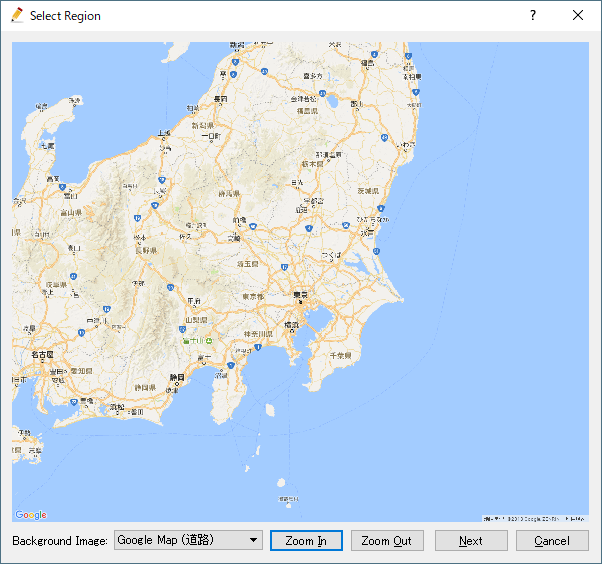
Figure 72 The [Select Region] dialog
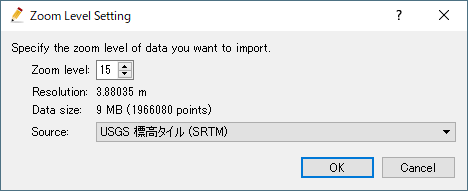
Figure 73 The [Zoom Level Setting] dialog
Figure 74 The [Please wait] dialog
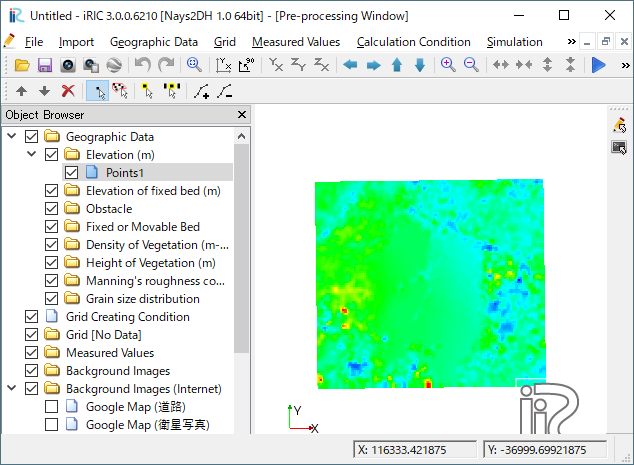
Figure 75 Example of imported geographic data