[Simulation] (S)
The functions of the items under the [Simulation] menu are explained in the following sections.
[Run] (R)
Description: Starts the solver.
When you select [Run], a warning dialog will open to ask whether you want to save the current project. When you have already run solver before, a dialog will open to ask if you agree to delete the previous calculation results.
When the solver starts running, the [Solver Console] will open. The solver console displays real-time output messages to the “Standard output” or to the “Standard error”. Figure 101 shows an example of the [Solver Console].

Figure 101 The [Solver Console]
[Stop] (S)
Description: Stops the solver.
When you select [Stop], the [Confirm Solver Termination] dialog (Figure 102) will open. Select [Yes] (Y) to stop running solver. When the solver has stopped, the [Solver Console] title changes. Figure 103 shows an example of the [Solver Console] window title after stopping the solver.
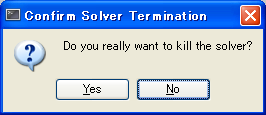
Figure 102 The [Confirm Solver Termination] dialog
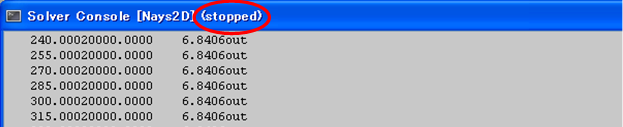
Figure 103 The [Solver Console] window title
[Solver Information] (S)
Description: Displays information of the solver that is used for the current project. An example of the dialog is shown in Figure 104.
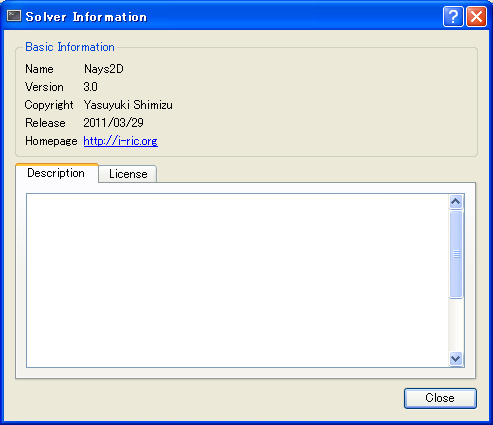
Figure 104 The [Solver information] dialog
[Export solver console log] (E)
Description: Exports the solver console log.
The function of this item is the same to [Solver Console Log] under [Export] menu under [File] menu. Refer to [Solver Console Log].