Functions related to grid attributes
To use the functions explained in this page, please follow the steps below:
In [Object Browser] of Pre-processing window, select the item under [Grid] / [Node attributes] or [Grid] / [Cell attributes], like [Elevation (m)].
Launch the function from the right-clicking menu on the item.
[Generate point cloud data]
Description: Generate [Point Cloud Data] from the values of the selected grid attribute.
A [Point Cloud Data] is generated in the [Geographic Data] group that corresponds to the grid attributes.
When the points are generated, the coordinates of the points are as below:
[Node attributes]: The coordinates of grid nodes
[Cell attributes]: The coordinates of the center of grid cells
[Export]
Description: Generate [Point Cloud Data] from the values of the selected grid attributes, and save it to Topography file (*.tpo).
Refer to Elevation data file (*.tpo) for the file format of Topography file.
[Show Attribute Browser]
Description: Show attribute browser.
When the menu is selected, [Attribute Browser] is shown under [Object Browser].
Figure 371 shows an example of [Attribute Browser].
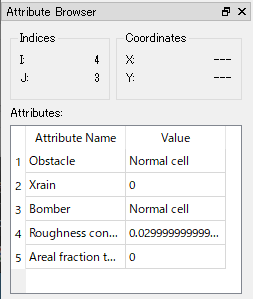
Figure 371 Example of [Attribute Browser]
While [Attribute Browser] is shown, you can use it with the following operations:
When mouse cursor hovers on grid, the list of attribute values at the node (or cell) under the cursor is shown in [Attribute Browser].
When the mouse left button is clicked, the target to show attributes is fixed.
When the mouse left button is clicked when the cursor is out if grid region, the target to show attributes is cleared.