[Maintainance] (M)
Shows Maintainance menu about iRIC GUI and Solvers launched from iRIC.
When you select [Maintainance], dialog in Figure 125 is shown. 「iRICを閉じて iRIC Maintainance を起動」ボタンを押すと、 iRIC GUI が終了して、 Figure 126 に示す iRIC メンテナンスが起動します。
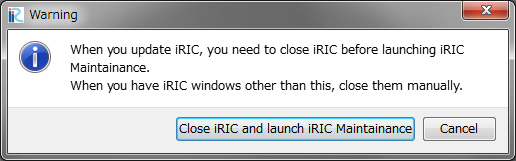
Figure 125 [Warning] dialog about launching [iRIC Maintainance]
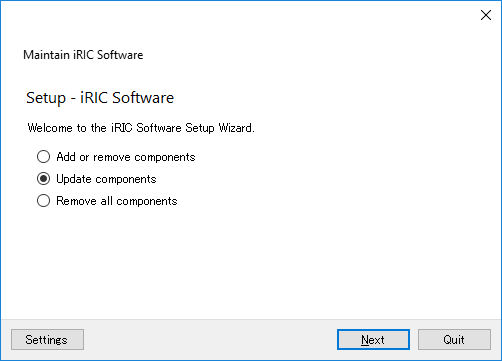
Figure 126 iRIC Maintainance main dialog
Function about iRIC Maintainance is described in the following subsections.
[Add or Remove components]
Add or remove components like iRIC GUI, solvers launched from iRIC GUI, etc.
When you check on the radio button next to [Add or Remove components] and click on [Next], page in Figure 127 is shown.
Check on the checkbox next to the component you want to add
Check off the checkbox next to the component you want to remove
After doing the operation above, click on [Next], then [Update] button, to add or remove components.
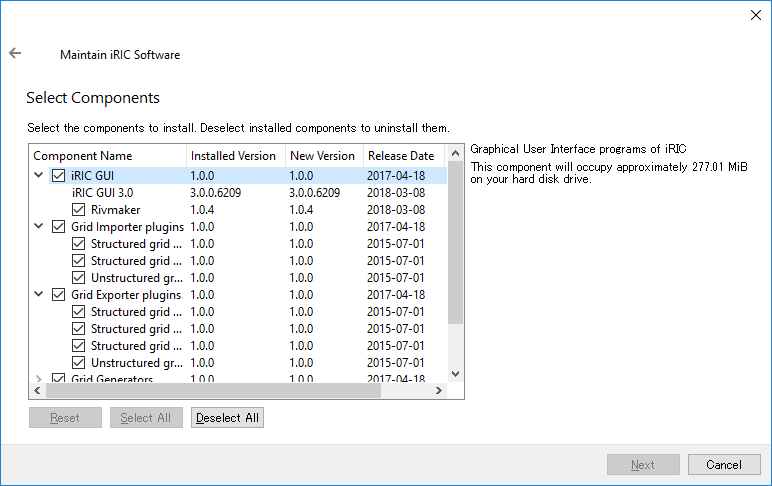
Figure 127 Page to select components to add or remove
[Update components]
Update components like iRIC GUI, solvers launched from iRIC GUI, etc.
When you check on the radio button next to [Update components] and click on [Next], downloading the information about component updates starts.
If there is not update, message is shown like in image_maintainance_update_nodata.
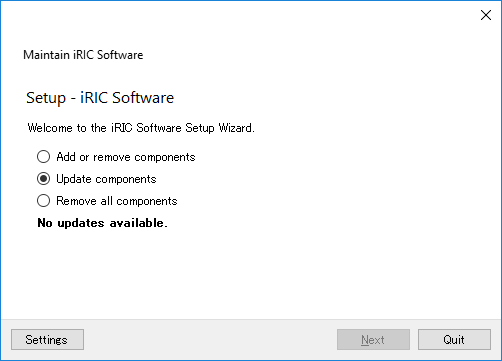
Figure 128 Page with message when there is no component update
If there are updates available, dialog in Figure 129 is shown. Check on the checkboxes next to components you want to update, click on [Next], then [Update] button, to update components.
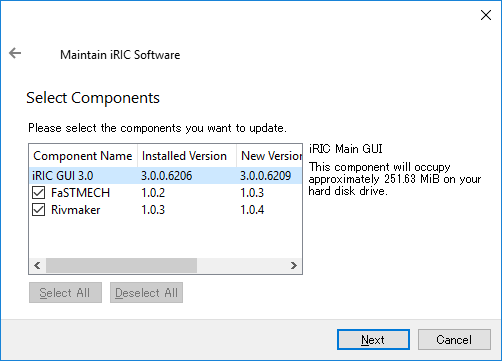
Figure 129 Page to select components to update
Remove all components
Remove all the components related to iRIC.
Dialog in Figure 130 is shown. When you click on [Uninstall] button, all components are removed.
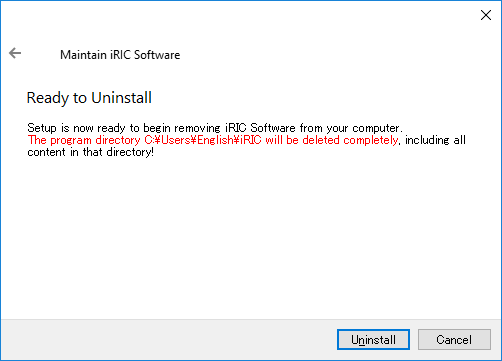
Figure 130 Page to uninstall
Settings
Edit settings about iRIC Maintainance.
Dialog in Figure 131 is shown. Edit the setting to match your environment, and click on [OK].
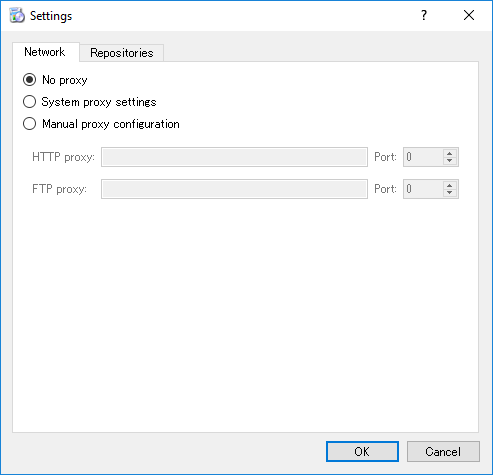
Figure 131 [Setting] dialog